

Bookings and the calendar
Visitors can book an appointment from the chat. You choose how, in Settings → Bookings:
| Choice | In the chat | Good for |
|---|---|---|
| No appointments | Nothing about booking | Businesses that quote or call back first |
| External booking link | A Book a time button that opens your booking page (Calendly, Cal.com, Acuity, your own…) | Keeping the booking tool you already have |
| Date picker in the chat | A calendar in the chat: the visitor picks a free time, adds their name and email, and presses Book. HelpPuff books it | Booking without leaving the chat, with the appointment on a job |
To see the date picker before you switch it on, open the playground and press Booking beside the chat (or Book a time on the home screen): the times there are made up and the booking stays in the page.
If you haven't chosen, HelpPuff looks at your website: a booking link it finds there (a Calendly, Cal.com, Acuity, SavvyCal, HubSpot meetings or similar link, or a "Book a call" page on your site) is offered as External booking link. The Booking page field shows the URL currently in use; Keep this link saves that exact URL. Once you choose and save, the website never changes it.
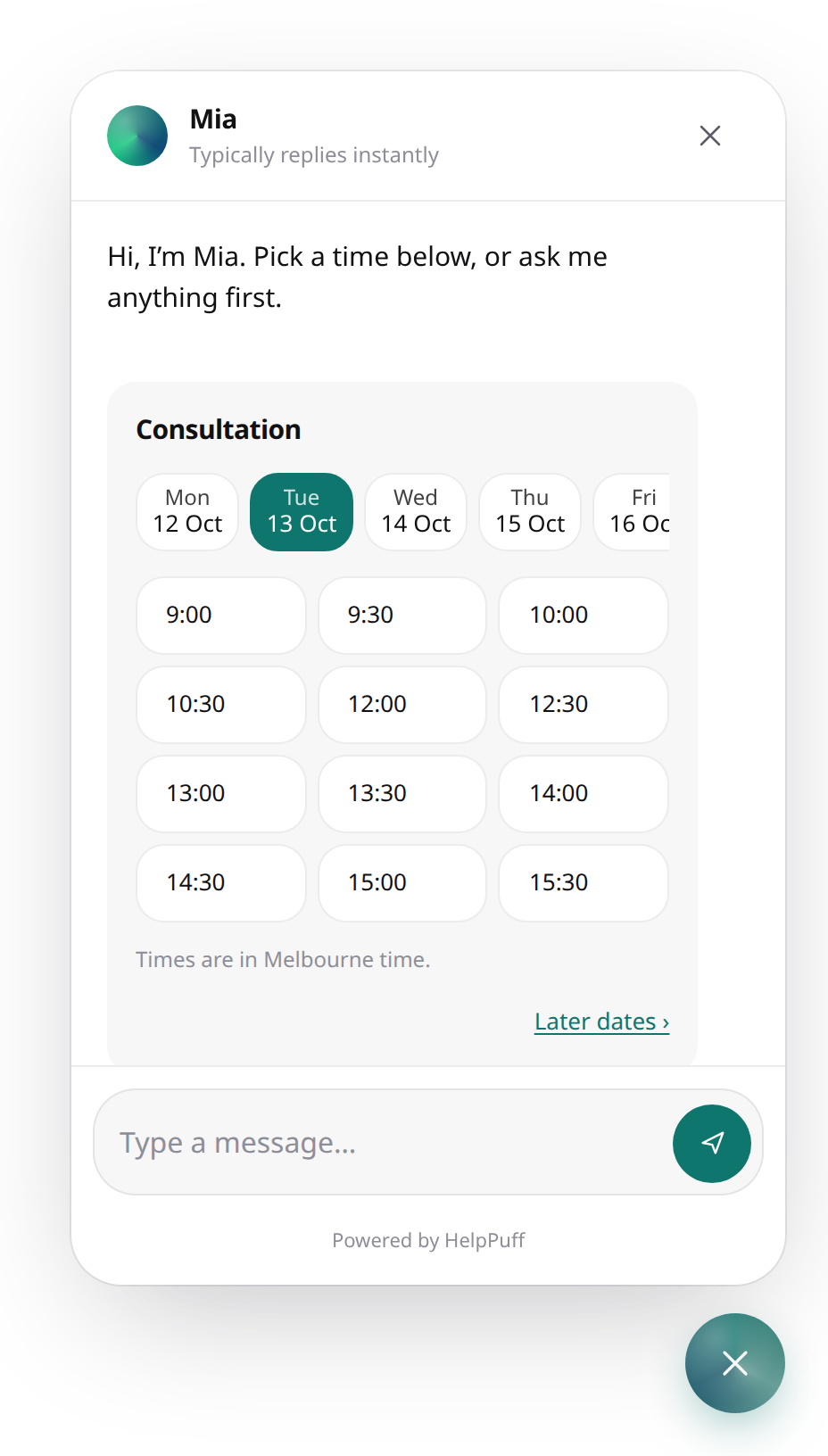
The AI suggests, HelpPuff books
With the date picker, the assistant never books, holds or confirms a time itself. When a visitor wants an appointment, it opens the calendar in the chat (narrowed to the days or part of the day they asked for: "Thursday morning, or Friday"), and the visitor picks and books there. HelpPuff then:
- checks the time is one it offered to this conversation, and still free;
- holds it, so two visitors can't book the same time, and pressing Book twice books once;
- writes it to your synced calendar, if you have one (and keeps it only if that worked);
- puts it on a job: the conversation's or the contact's open job, else a new one;
- shows the visitor a confirmation card, with Change time and Cancel booking, and tells the assistant what was booked, so it can answer questions about it.
Why: we tested AI models booking by themselves, and even the best sometimes booked a different time than the visitor chose, or booked twice. See Why the AI never books. Booking works the same way on every model, including the free default, and with backends that run their own conversation (they get a Book a time button after a question about booking).
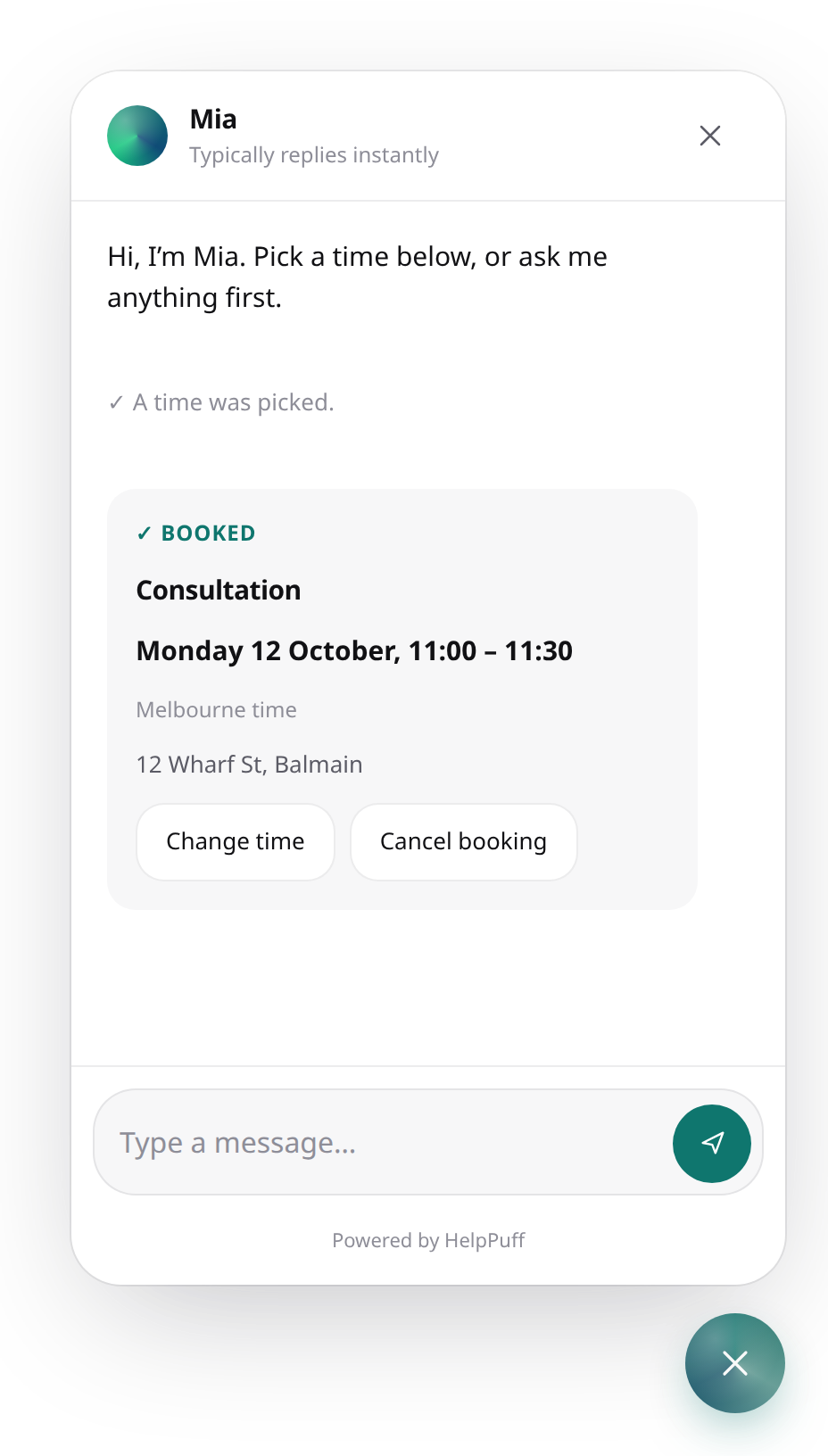
Times are shown in the visitor's own time zone ("Times are in Perth time"), and booked in yours.
Calendar sync
With the date picker, HelpPuff always keeps the appointments itself. You can also sync with a calendar: it decides where free time comes from and where bookings are written. The picker looks and works the same with each.
| Calendar | Free time from | Bookings written to | Needs |
|---|---|---|---|
| None (default) | Your hours here, less the appointments already booked | HelpPuff only | Nothing |
| Cal.com (cloud or self-hosted) | The event type's own slots | Cal.com, and HelpPuff | A Cal.com API key |
| Calendly | The event type's available times | Calendly on paid plans; on a free plan the visitor finishes on Calendly's page for the time they picked, and the booking is read back | A Calendly personal access token |
| Google Calendar | Your hours here, less busy time in the calendar | Google Calendar (with a Meet link when the option is on and no place is set), and HelpPuff | Composio, and a Google Calendar account connected through it |
| Outlook / Microsoft 365 | The same | Outlook, and HelpPuff | Composio, and an Outlook account |
Choose Cal.com or Calendly in Settings → Bookings to enter its key there; the event types appear after it connects. You can also manage keys in Settings → Integrations. For Google Calendar or Outlook, enter the Composio key and connect the calendar account in Bookings too. The sync goes both ways:
- HelpPuff → your calendar: a booking, a move or a cancellation from the chat, the dashboard or the API is written to the calendar first.
- Your calendar → HelpPuff: every 15 minutes (
syncMinutes), when you open the Calendar, and with Sync, HelpPuff reads 30 days back and 90 ahead. A new event becomes an appointment on a job when one of its attendees is a contact; otherwise it shows as busy time. A moved event moves here (the calendar's time wins; your notes stay), and a cancelled or deleted one is cancelled here. - Cal.com instantly: add HelpPuff's webhook in Cal.com (Settings → Integrations shows the address and secret), and changes there show within seconds.
The settings
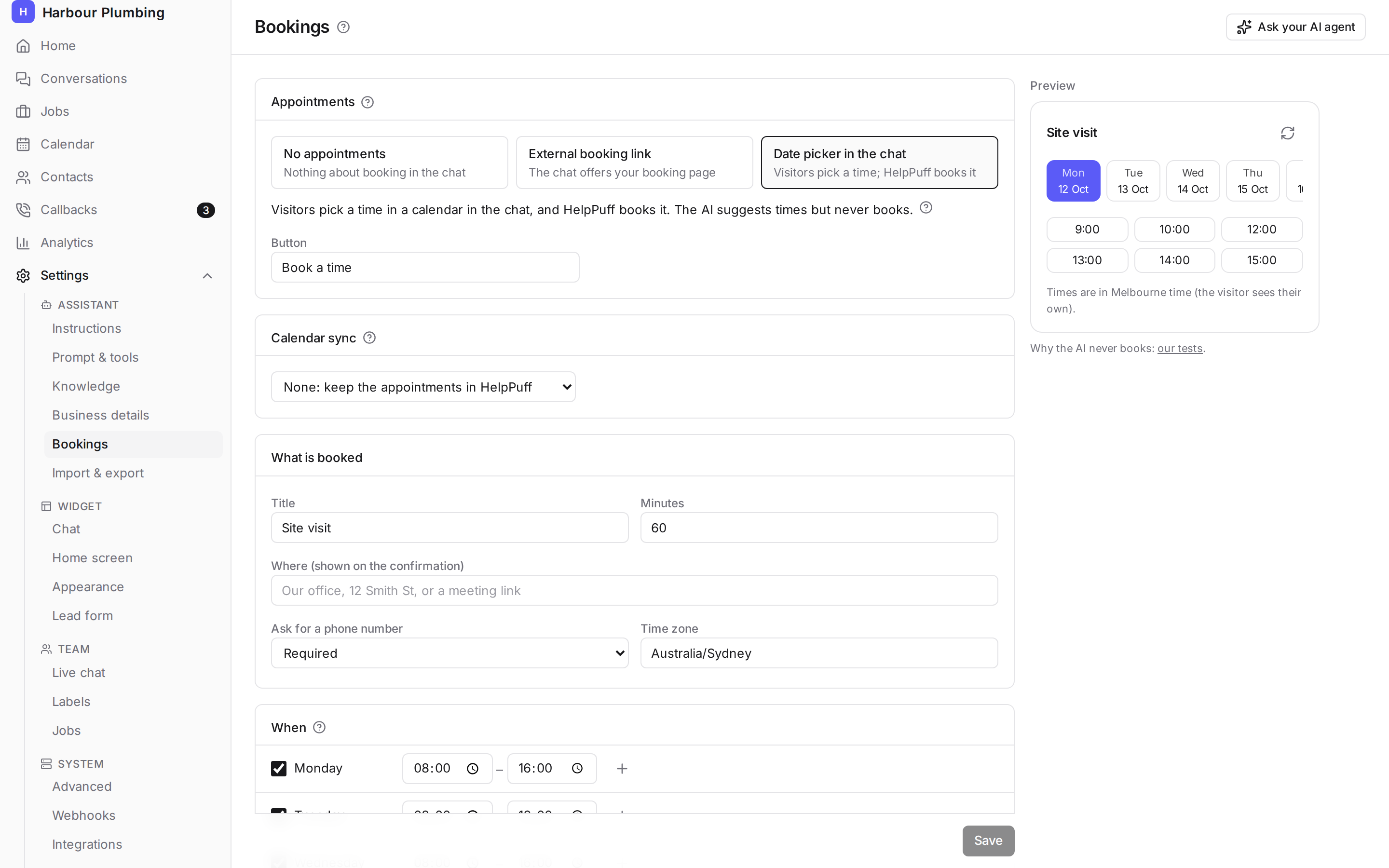
| Setting | What it does |
|---|---|
| Button | The label of the home-screen button and the one after an answer about booking (default Book a time) |
| Event type | Cal.com and Calendly: which event type is booked. Its length, hours and rules are used |
| Title, minutes | What is booked, and how long (None, Google, Outlook) |
| Where | Shown on the confirmation (None; a calendar sets its own) |
| Create a Google Meet link | Google Calendar only. On by default for new bookings without a place; turn it off to create calendar events without a Meet link. Cal.com and Calendly use the chosen event type's Location setting instead; change that in the provider. |
| Phone | Ask for a phone number: no, optional or required |
| Time zone | Yours, for the hours (default the assistant's) |
| Hours | Per weekday, up to four ranges; an empty day is closed |
| Gap between | Minutes kept free after each appointment |
| Earliest booking | How far ahead the first free time is (default 2 hours) |
| Days ahead | How far ahead visitors can book (default 30) |
On the right, the preview shows the picker as a visitor sees it, with the real free times. Its Book books nothing.
In helppuff.json it is the bookings section (see the Configuration reference); helppuff config pull brings the dashboard's changes into it.
"bookings": {
  "mode": "picker",
  "title": "Consultation",
  "duration": 45,
  "hours": { "mon": ["09:00-17:00"], "tue": ["09:00-17:00"], "wed": ["09:00-12:00", "13:00-17:00"], "thu": ["09:00-17:00"], "fri": ["09:00-13:00"], "sat": [], "sun": [] },
  "timezone": "Australia/Melbourne",
  "phone": "optional",
  "location": "12 Wharf St, Balmain"
}
The calendar
With the date picker on, the dashboard gets a Calendar page (next to Jobs): every appointment as a list, a month, a week or a day, in your own time zone. Busy time from a synced calendar shows grey.
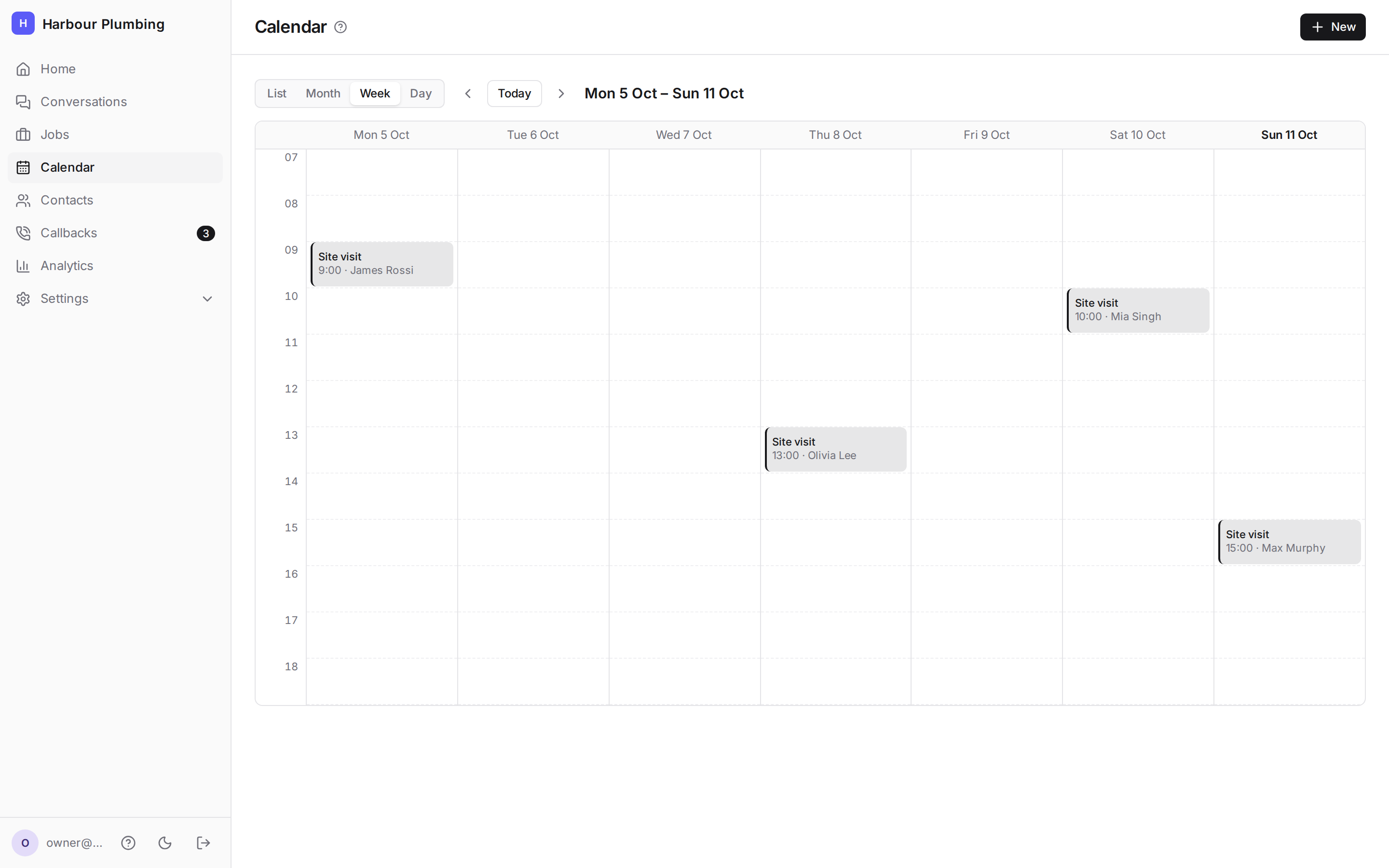
- + New (or click an empty hour) books one by hand: written to the synced calendar, then put on a job. A time that overlaps another is refused unless you choose Book it anyway.
- Click an appointment to see its contact, job and conversation; move it, mark it completed or a no-show, cancel it, or (admins) delete it.
- Sync reads the synced calendar now.
Each job shows its Appointments (upcoming, then past) with + Add, and so do a contact's page and a conversation. Every booking, move and cancellation goes into the job's history.
With No appointments or External booking link, none of this shows: no Calendar page, no Appointments sections, no sync. Turn the date picker off and back on, and the appointments are still there.
Visitors change their mind
The confirmation card in the chat has Change time (the picker again; the appointment moves, at the calendar too) and Cancel booking (after asking). Only the conversation that booked it can change it. A Calendly appointment is moved with Calendly's own link (its API cannot move one).
Reminders and other tools
Each change sends a webhook (see Webhooks):
| Event | When |
|---|---|
appointment.created | Booked in the chat, the dashboard or the API, or found in the synced calendar |
appointment.updated | Moved, or its status, title, place or notes changed |
appointment.cancelled | Cancelled anywhere, the synced calendar included |
appointment.reminder | About a day before, once per appointment (not for one booked in the last hour) |
HelpPuff doesn't send emails or texts itself: point appointment.reminder at n8n, Zapier or your own endpoint to send them your way.
From your own systems, and your coding agent
- API:
GET /api/v1/appointments,POST,PATCH,DELETE, andPOST /api/v1/appointments/sync(keys withjobs:read/jobs:write); the settings arebookingsinPUT /api/v1/settings. See the API reference. - CLI:
helppuff bookings mode picker
helppuff bookings set --duration 45 --hours "mon=09:00-17:00;fri=09:00-13:00;sat=;sun=" --timezone Australia/Melbourne
helppuff bookings sync calcom --event-type 1234567     # after: helppuff integrations add calcom --key-env CALCOM_API_KEY
helppuff bookings slots                                 # the free times a visitor would see
helppuff appointments list
helppuff appointments add --start 2026-10-15T09:00:00+11:00 --name "Ada Lovelace" --email ada@example.com- Your coding agent: ask it to "set up booking in the chat with me": it reads the settings with the CLI, asks about your hours and calendar, then sets them and checks the free times.
Limits
Two settings in Settings → Advanced bound the picker per visitor: slotLookupsPerIpPerMinute (30) and bookingsPerIpPerHour (5). See Security.